
AirPlay - Cast Tv review
 Analysis by GetAllApps
I would judge AirPlay - Cast Tv less by its name than by the moment it is meant to help with: moving something on a phone onto a television. That sounds simple, but casting depends on the phone, the TV, and the network cooperating. In my view, this app is best approached as a practical casting option to try when you want a larger screen, not as a guarantee that every device or video will work the same way.
It is a free app from FastSoft in the libraries and demo category, with a 4.2 average from around 1.4 thousand ratings and over 100 thousand installs. Its age rating is Everyone, and the current version is 2.6.1. Those figures suggest that plenty of people have tried it, but they do not tell me whether it will suit a particular television. For casting, compatibility and a steady connection matter more than popularity.
When the network makes or breaks casting
The main thing I keep in mind with AirPlay - Cast Tv is that casting is a chain, not a single action. The phone has to find a compatible destination, the TV has to be ready to receive what is sent, and the connection needs to hold up while you watch. If one link is missing, a simple-looking cast attempt can turn into a search through settings.
That makes the app most appealing when both devices are already on a familiar home network and you have a clear reason to use the television. For example, I might want to show a relative a clip or put photos on a larger screen rather than pass my phone around. In that situation, casting can make the viewing feel shared, provided the TV is discoverable and the network is behaving normally.
A useful habit is to check the destination before you start troubleshooting the app. Confirm that the television is on, that it is ready for casting, and that your phone is connected to the network you expect. This small sequence can save time: if the TV is not available to the phone, repeatedly tapping cast is unlikely to solve the underlying connection issue.
Network quality also affects whether casting feels effortless or fussy. A busy or unstable connection can interrupt the experience even when the devices initially see each other. I would avoid treating a successful first connection as proof that the whole session will be smooth; if a video matters, give yourself a moment to check playback before settling in.
A better fit for planned viewing than last-minute sharing
For an everyday scenario, imagine that you have found a video on your phone and want to show it to people in the living room. The least stressful approach is to connect before everyone is waiting, select the TV, and confirm that the content actually appears there. If it does not, you still have time to use the phone screen or another familiar option instead of turning a casual moment into a long setup exercise.
This is where the app’s purpose is clear, but its boundaries matter. It is intended for casting to a TV; I would not choose it when I need editing tools, a media library, or a universal solution for every screen in the house. The name may suggest a broad AirPlay experience, but the sensible expectation is narrower: it may help with casting where the receiving setup supports the connection.
Using it away from the living room
Mobile use changes the equation. At home, the network and television are often familiar. At a hotel, a shared workspace, or someone else’s house, the TV may not be available for casting, and a public or guest network may handle device discovery differently. I would not assume that a phone and TV being connected to “the internet” automatically means they can see each other.
If I were visiting friends, I would ask first whether their TV is set up for casting and whether they are comfortable having a guest device connect. That avoids wasting time on a screen that is not intended to receive casts. It also respects the host’s setup, which can include network arrangements that are not obvious from the TV menu.
For travel, this is not the app I would rely on as my only viewing plan. If a presentation, family video, or other important content must be shown, I would have a fallback ready, such as sharing from the phone itself or using a connection method already known to work with that display. The point is not that the app cannot work away from home; it is that unfamiliar networks add variables the app cannot resolve by itself.
Compared with built-in casting options on a phone or TV, a dedicated app can be worth trying when the usual route is inconvenient or when you want a straightforward casting tool. But if your devices already work reliably through their native controls, that route may be simpler because it avoids adding another app to the process. I see this as a situational alternative, rather than a reason to replace a setup that already behaves well.
What I would try when a cast fails
When a TV does not appear, I would troubleshoot in a calm order instead of assuming the app is broken. First, I would check that the television is awake and that its casting function is available. Next, I would verify that the phone is on the intended network and give the devices a moment to detect one another. Then I would close and reopen the casting attempt before changing several settings at once.
If the TV appears but playback does not behave as expected, I would separate discovery from content compatibility. Finding a display only confirms that a connection path exists; it does not guarantee that every item on the phone can be sent successfully. Trying a different piece of content can help identify whether the difficulty is tied to the specific source rather than the television connection as a whole.
There is a practical trade-off here: troubleshooting takes longer when you do not know which part of the chain is failing. I recommend changing one thing at a time. If you switch networks, restart the TV, and alter phone settings all together, you may get a result without learning what fixed it, which makes the next session no easier.
It is also worth deciding when to stop. If the TV never becomes visible after the basic checks, or a connection keeps dropping, switching to a known alternative may be the better use of your time. A casting app should make sharing easier; it should not turn an ordinary viewing plan into a network investigation.
Keeping connectivity and mobile data in mind
Because casting involves a phone and a networked screen, I would pay attention to which connection the phone is using before starting. When I am at home on a familiar Wi-Fi network, it is easier to understand the setup and avoid unexpected mobile-data use. Away from home, I would be more cautious, especially if the content is long or the available connection is limited.
I would also think about the difference between sending content to a TV and merely using the phone as a remote or controller. The exact path can vary by the content and devices involved, so I would not assume that casting always uses data in the same way. If data allowance matters, the safest practical move is to use a trusted Wi-Fi connection and check the phone’s own data controls rather than guess.
A small but helpful workflow is to connect first, then open the content you intend to show. That makes it easier to tell whether a delay happens during device discovery or while starting playback. It also prevents you from repeatedly loading or reopening content while still trying to establish the TV connection.
Privacy and shared spaces deserve a little thought too. Before casting at a friend’s place or in a communal room, I would make sure the intended display is selected and that the people nearby are comfortable with what is about to appear. This is a general courtesy, but it is especially useful when a phone contains personal photos or notifications that could show up during a shared viewing session.
Cost, expectations, and who should try it
The app is free to install, with in-app purchases listed from $16.99 to $64.99 per item. I would consider that range before paying for anything: first establish whether the free experience works with your own phone, TV, and typical content, then decide whether any paid option addresses a real need. There is little value in spending money before confirming that the connection fits your setup.
I would recommend giving it a try if you want to cast from a phone to a television and are willing to do a quick compatibility check. It is a more sensible match for someone who occasionally shares media at home than for someone who expects a polished, no-setup solution across unfamiliar TVs and networks. The 4.2 average and its sizable audience are useful context, but individual device combinations still decide the experience.
I would skip it if your TV does not support the kind of casting you need, if you are unwilling to troubleshoot network discovery, or if your built-in phone-to-TV option already works smoothly. People who need dependable casting for a time-critical meeting should test their exact setup well beforehand, rather than making this their first attempt in front of an audience.
Overall, I see AirPlay - Cast Tv as a potentially handy bridge between a phone and a TV, with connectivity as both its main strength and its main source of friction. It can make a shared video or photo-viewing moment more comfortable, but it cannot make an incompatible display or unreliable network behave like a ready-made casting system. My advice is to test it at home on the network you plan to use, keep a fallback in mind for unfamiliar places, and judge it by how consistently it works with your own devices.
Pros and cons
Pros
- Casts photos and videos to compatible screens.
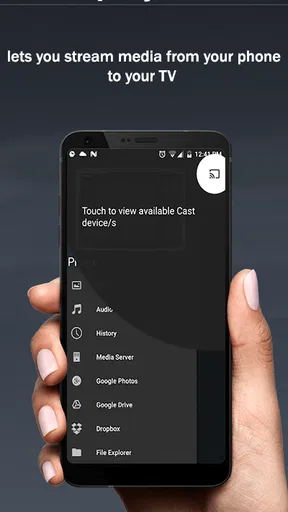
- Offers a simple way to browse and select media.
- Can make phone content easier to share on a larger display.
- Useful for viewing personal media with others.
- A casting app can reduce the need for cables.
Cons
- Requires a compatible receiver or casting device.
- Casting quality can depend on Wi-Fi strength.
- Some features may require a paid upgrade.
- Device compatibility can vary by TV model.
- May not support every media format or streaming service.


